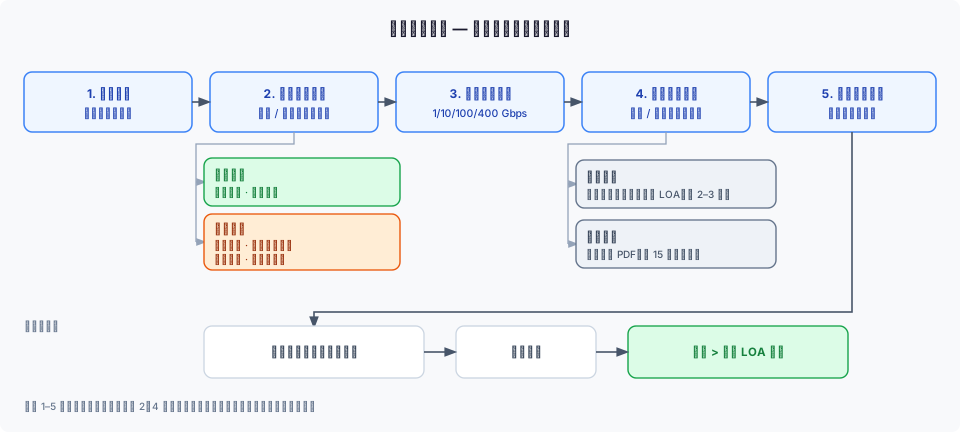

# 创建端口

## 背景信息

端口提供接入点，而跳线则在这些点之间建立物理连接。例如，在数据中心，您的服务器有一个端口，通过跳线连接到交换机。交换机可能再连接到其他网络设备或外部供应商，实现系统之间的数据流动。

我们支持两种建立所需跳线的方式：**自助对接**和**辅助对接**。详情请参阅[**创建跳线**](/welcome/cn/cloud-networking/get-started/create-a-port/create-a-cross-connect.md)。

## 操作步骤

在 zenConsole 的左上角，依次点击 **产品** > **云网络** > **端口** > [**创建端口**](https://console.zenlayer.com/sdn/port/create)。\
创建端口的总体步骤如下：

1. 选择最接近您数据中心的地域。
2. 选择端口规格。支持 1 Gbps、10 Gbps 和 100 Gbps。\ <img src="/files/BWTIZWYCb7GnrFL9mThK" alt="" data-size="line"><mark style="color:blue;">**注意**</mark>\ <mark style="color:blue;">为了确保业务的未来发展，建议选择 10 Gbps 及以上的端口速率。</mark>
3. 选择跳线的建立方式。

   * **自助对接**\
     您将自行离线设置跳线。您需要提供授权方的合法企业名称。我们将为您上传 LOA（授权信），以便您建立跳线。\ <img src="/files/BWTIZWYCb7GnrFL9mThK" alt="" data-size="line"><mark style="color:blue;">**注意**</mark>\ <mark style="color:blue;">**-**</mark> <mark style="color:blue;">LOA 上的实体名称应与托管设施注册的名称一致。</mark> \ <mark style="color:blue;">- LOA 的上传通常需要 2 到 3 天。</mark>\
     \- <mark style="color:blue;">LOA 将在 90 天后过期。请尽快建立您的跳线。</mark>\ <mark style="color:blue;">-</mark> <mark style="color:blue;">如果您遇到无法控制的问题，也可以在 zenConosle 上创建跳线。</mark>
   * **辅助对接**\
     Zenlayer 将为您离线建立跳线。您需要提供一个包含您的跳线位置和建立方式的有效 PDF 文件，以及您的联系信息。\ <img src="/files/BWTIZWYCb7GnrFL9mThK" alt="" data-size="line"><mark style="color:blue;">**注意**</mark>\ <mark style="color:blue;">通常需要 15 个工作日来构建跳线。请耐心等待。</mark>

   详情请参阅[**创建跳线**](/welcome/cn/cloud-networking/get-started/create-a-port/create-a-cross-connect.md)。
4. 为端口添加标签以便识别。

## **下一步操作**

前往端口列表页面，点击端口名称以查看端口建设进度。以下以自助对接的端口为例。

<figure><img src="/files/UI3CgQD9lJY1K61stLjq" alt=""><figcaption><p>端口建设进度</p></figcaption></figure>

端口激活后，您可以在 **操作** > **下载 LOA** 中下载 LOA 证书。

如果您不再需要活动端口，可以回收它们。回收后，所有数据将在 2 天内保留，之后资源将被完全释放。如果需要，您可以在资源释放前恢复，或手动删除资源。

{% hint style="info" %} <mark style="color:blue;">**注意**</mark>

<mark style="color:blue;">对于辅助对接的端口，您只能在承诺期限结束后删除。如果需要删除，请提前一个月申请。</mark>
{% endhint %}


---

# Agent Instructions: Querying This Documentation

If you need additional information that is not directly available in this page, you can query the documentation dynamically by asking a question.

Perform an HTTP GET request on the current page URL with the `ask` query parameter:

```
GET https://docs.console.zenlayer.com/welcome/cn/cloud-networking/get-started/create-a-port.md?ask=<question>
```

The question should be specific, self-contained, and written in natural language.
The response will contain a direct answer to the question and relevant excerpts and sources from the documentation.

Use this mechanism when the answer is not explicitly present in the current page, you need clarification or additional context, or you want to retrieve related documentation sections.
