> For the complete documentation index, see [llms.txt](https://docs.console.zenlayer.com/welcome/llms.txt). Markdown versions of documentation pages are available by appending `.md` to page URLs; this page is available as [Markdown](https://docs.console.zenlayer.com/welcome/cn/elastic-compute/get-started/manage-storage/create-a-snapshot.md).
# 创建快照
当您需要捕获磁盘的当前状态,以便稍后恢复或参考时,应创建快照。通常建议在进行可能需要撤销的更改之前创建快照。
## 操作步骤
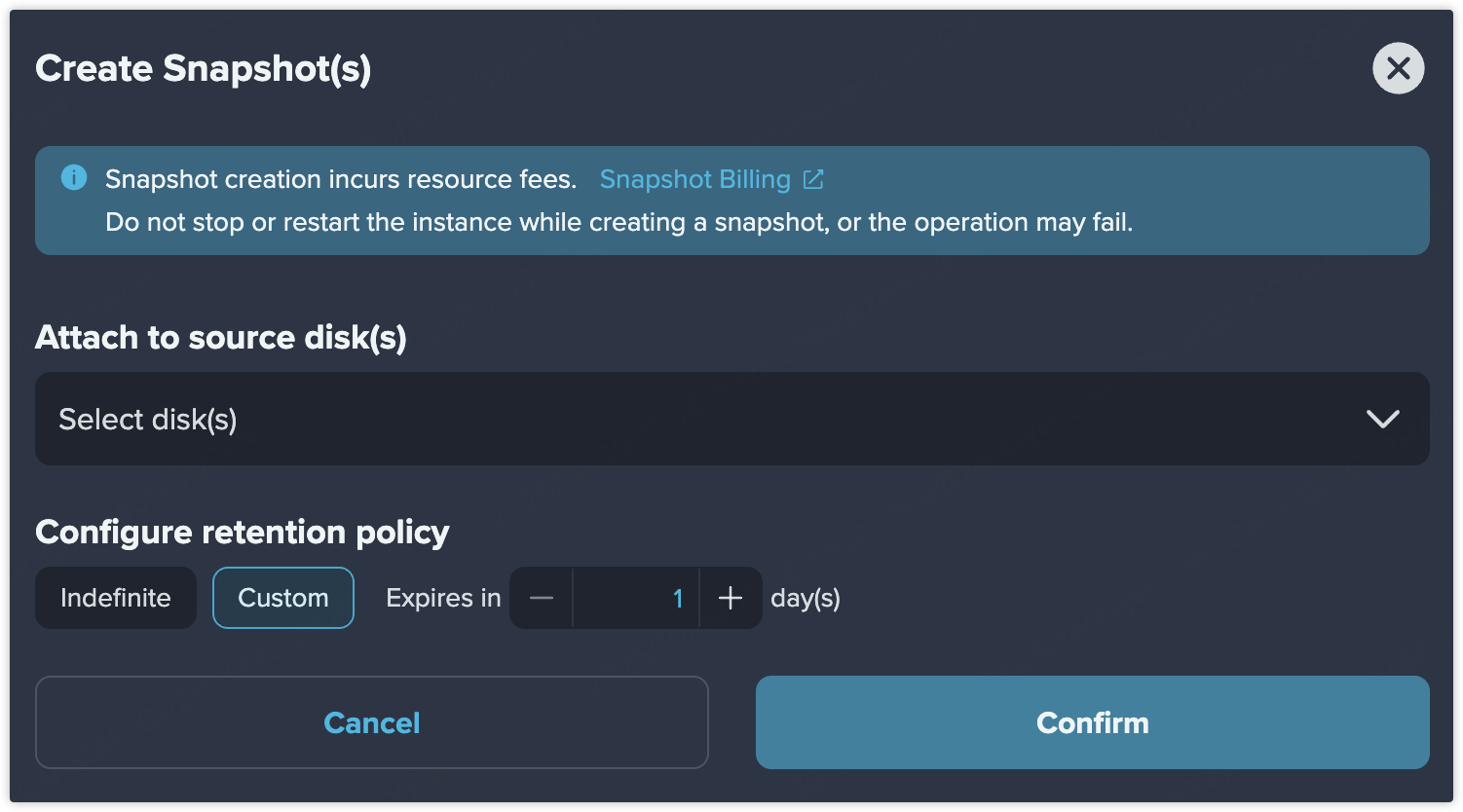
1. 进入 **快照** > **创建快照**。
2. 选择一个或多个要附加的源磁盘。\
如果选择一个源磁盘,将创建单个快照;如果选择多个磁盘,将创建多个快照。\
每个快照包含创建时附加磁盘的完全相同的数据。
3. 配置保留策略。
* **永久保留** – 快照将一直保留,直到手动或自动删除;
* **自定义** – 定义快照过期时间(如保留 7 天、30 天等)。
4. 确认您的配置。
{% hint style="info" %} **注意**
* 创建快照会产生资源费用。详情请查看 [快照计费](/welcome/cn/pricing/elastic-compute-billing/snapshot-billing.md)。
* 创建快照期间请勿停止或重启实例,否则操作可能失败。
{% endhint %}
## 结果
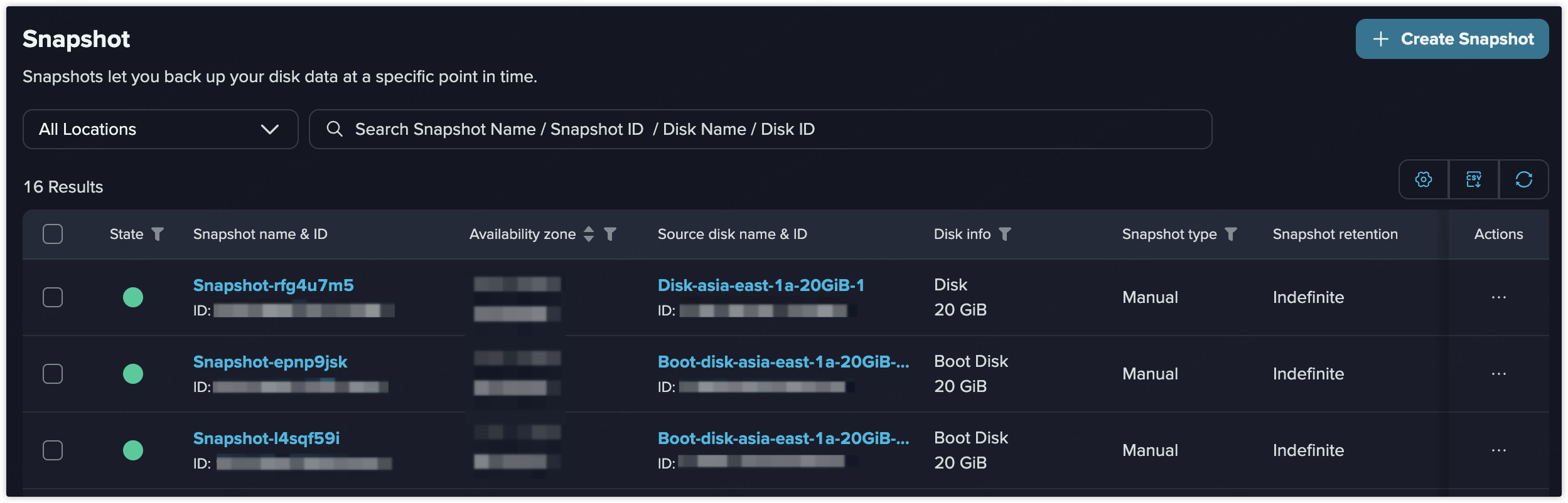
您将在快照列表页面看到手动创建的快照。
点击快照详情查看基本信息。
* **前往源磁盘详情**\
在快照详情页面点击 **前往源磁盘详情**,即可跳转至源磁盘详情页面。
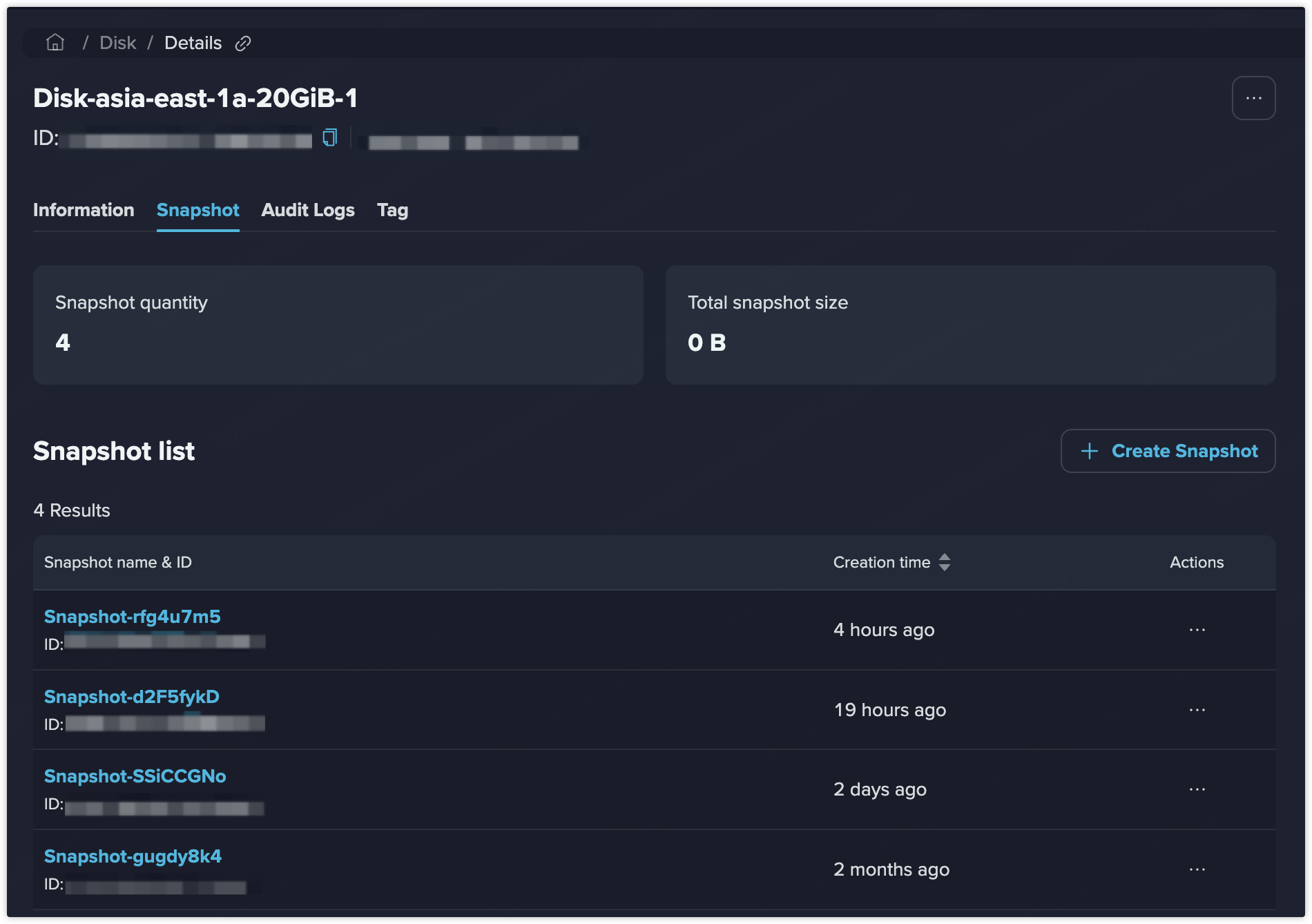
* 快照数量\
附加到该磁盘的快照总数
* 快照总大小\
所有附加快照的存储总大小
## 更多操作
在快照列表页面,可以在 **更多操作** 中执行更多操作。
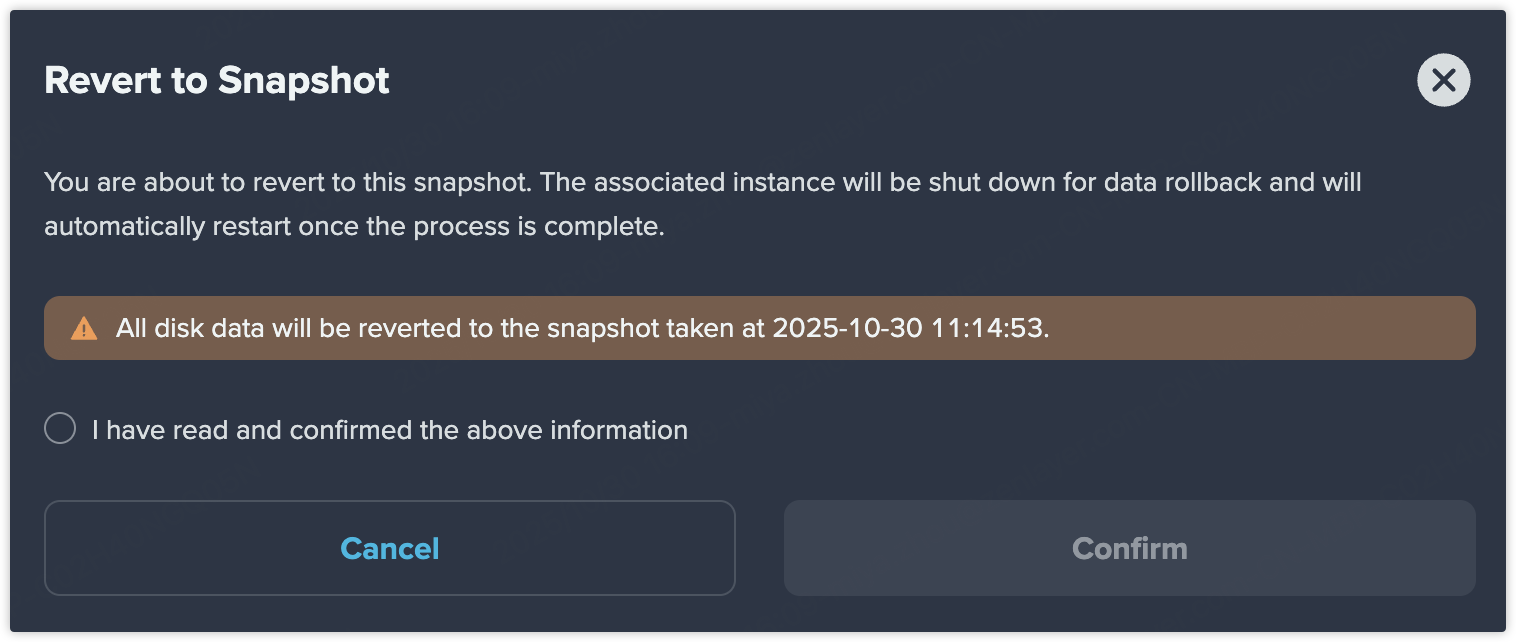
### 回滚到此快照
选择要回滚的快照,磁盘数据将回滚到创建快照时的状态。
### 创建磁盘
点击 **创建磁盘** 跳转至磁盘创建页面。您可以使用所选快照的数据生成新磁盘,内容与快照一致。
{% hint style="info" %} **注意**
无法从启动盘快照创建磁盘。
{% endhint %}
### 变更保留时间
在 **永久保留** 与 **自定义** 之间更改保留策略。
### 删除快照
如果不再需要某个快照,可以删除它。请注意,快照删除不可恢复,请谨慎操作。支持批量删除。