> For the complete documentation index, see [llms.txt](https://docs.console.zenlayer.com/welcome/llms.txt). Markdown versions of documentation pages are available by appending `.md` to page URLs; this page is available as [Markdown](https://docs.console.zenlayer.com/welcome/elastic-compute/get-started/manage-networking/create-a-cidr-block-ipv4.md).
# Create a CIDR Block IPv4
## Prerequisites
* Create a CIDR block IPv4 if you need to purchase consecutive IP blocks or use your own BYOIP.
## Procedures
Go to **Elastic Compute** > **IP Pool** > **CIDR Block IPv4** and click **Create CIDR Block IPv4**.
{% stepper %}
{% step %}
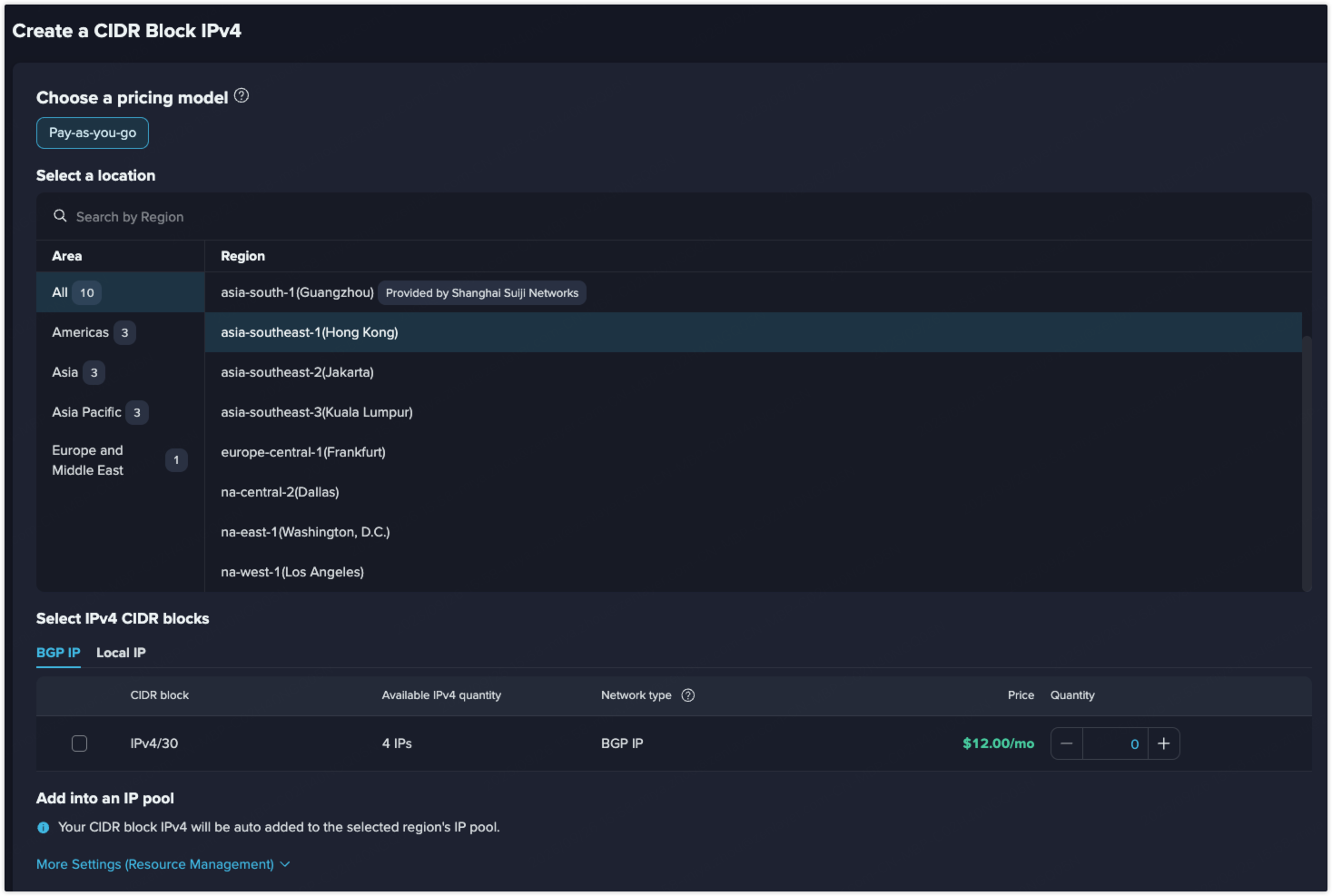
**Choose a Pricing Model**
Select the pricing model of Pay-as-you-go from the available options.
If you have more requirements, please contact us.
{% endstep %}
{% step %}
**Select a Location**
Select the region you want to deploy the CIDR block IPv4.
{% endstep %}
{% step %}
**Select IPv4 CIDR Blocks**
Choose your desired network type:
* Premium BGP IP: Premium BGP IP is a type of elastic IP address implemented through the Border Gateway Protocol (BGP). It enables users to auto manage their network routes with high flexibility and reliability. Premium BGP IP is suitable for network application scenarios requiring scalability and high availability.
* Local IP: A local IP address is provided by a local ISP, with its registered location matching the country of the server's data center. It is ideal for applications with strict IP requirements, such as cross-border e-commerce, where a local IP enables smoother registration and operation.
* Standard BGP IP: Standard BGP IP is a BGP IP service delivered over a blended mix of Cogent and GTT — two global Tier 1 carriers — providing broad international reachability across North America, Europe, and parts of Asia at a more cost-effective per-Mbps price than Premium BGP IP.
Check the CIDR block size you want (e.g., `IPv4/30`) and specify the quantity.
{% endstep %}
{% step %}
**Add to an IP Pool**
Your CIDR block IPv4 will be auto added to the selected region's IP pool.
A user can have only one IP pool in a region. If you have already created a CIDR block IPv4 in a specified region, the new CIDR block IPv4 in this region will be auto added into the existing IP pool.
{% endstep %}
{% step %}
**Select a Resource Group**
Allocate to a resource group if you need.
{% endstep %}
{% step %}
**Check and Confirm Your Order**
{% endstep %}
{% endstepper %}
## Result
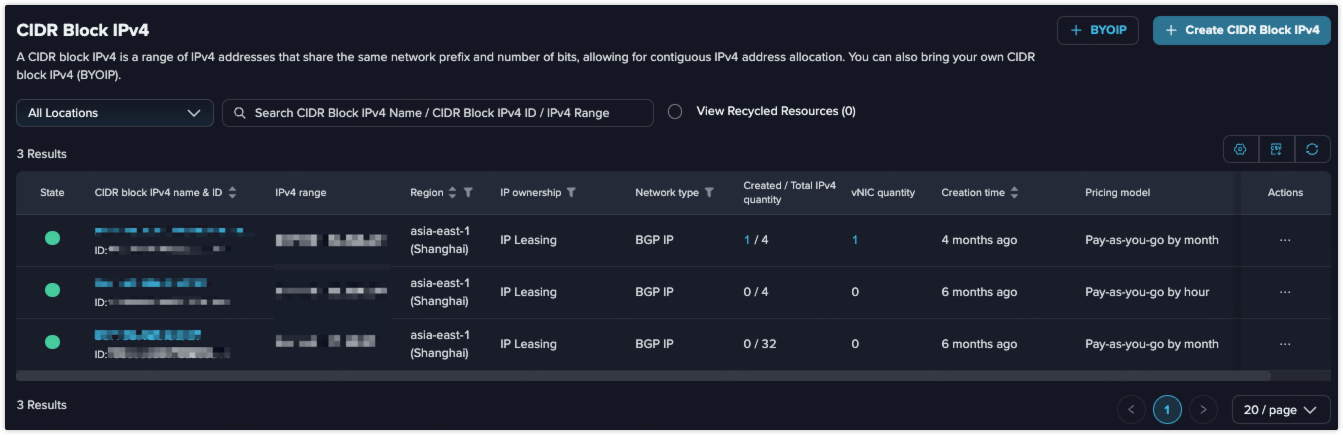
After creation, you can view your CIDR Block IPv4 in the list.
## More Operations
### Create Elastic IPv4
Click CIDR Block IPv4 name to view details.
You can create an elastic IPv4 from your CIDR Block IPv4 either on the details page or via the **Actions** menu.
View [Create an Elastic IPv4](/welcome/elastic-compute/get-started/manage-networking/create-an-elastic-ipv4.md) for more details.
### Delete CIDR Block IPv4
If you don't need the CIDR block any more, you can delete it via the **Actions** menu.
Please release the created elastic IPv4 addresses first before deleting a CIDR Block IPv4.