> For the complete documentation index, see [llms.txt](https://docs.console.zenlayer.com/welcome/llms.txt). Markdown versions of documentation pages are available by appending `.md` to page URLs; this page is available as [Markdown](https://docs.console.zenlayer.com/welcome/elastic-compute/load-balancing/manage-a-load-balancer.md).
# Manage a Load Balancer
## Bind Elastic IPv4
The elastic public IPv4 serves as a load balancer's VIP (Virtual IP), which is the external access address of the load balancer. You can bind multiple elastic IPv4 addresses to your load balancer if you have high traffic and capacity requirements.
{% hint style="info" %} **Note**
You can only bind elastic IPs within the same region as the load balancer.
{% endhint %}
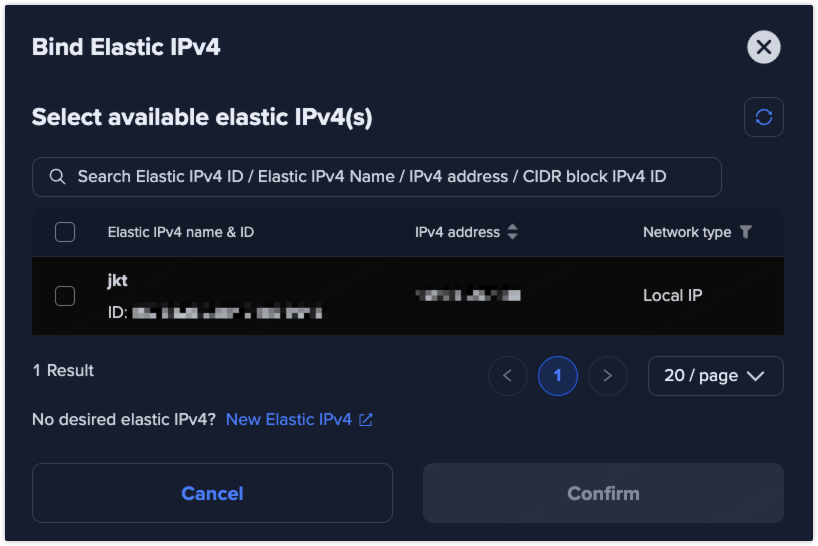
On the load balancer list page, go to **Actions** > **Bind Elastic IPv4**; or on the Details page, go to **Information** > **Network configuration** > **Bind Elastic IPv4**.
Check the desired IPs and click **Confirm**. If no desired elastic IP is available, click **New Elastic IPv4** to create one.
To unbind an IP, go to the Details page, **Information** > **Network configuration** > **Public IP Address** > **Actions** > **Unbind**.
***
## Change Security Group
You need to change the associated security group of a load balancer when the **traffic access requirements** to the load balancer change.
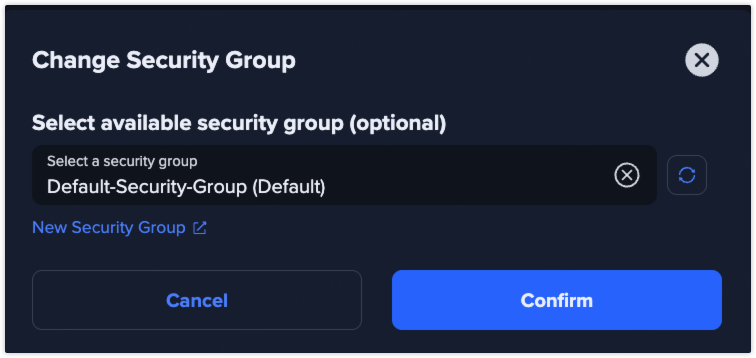
On the load balancer list page, go to **Actions** > **Change Security Group**.
Select the desired security group. If no desired security group is available, click **New Security Group** to create one.
***
## Check Performance
You should review load balancer performance metrics when experiencing access issues, traffic spikes, configuration changes, or during capacity and cost planning.
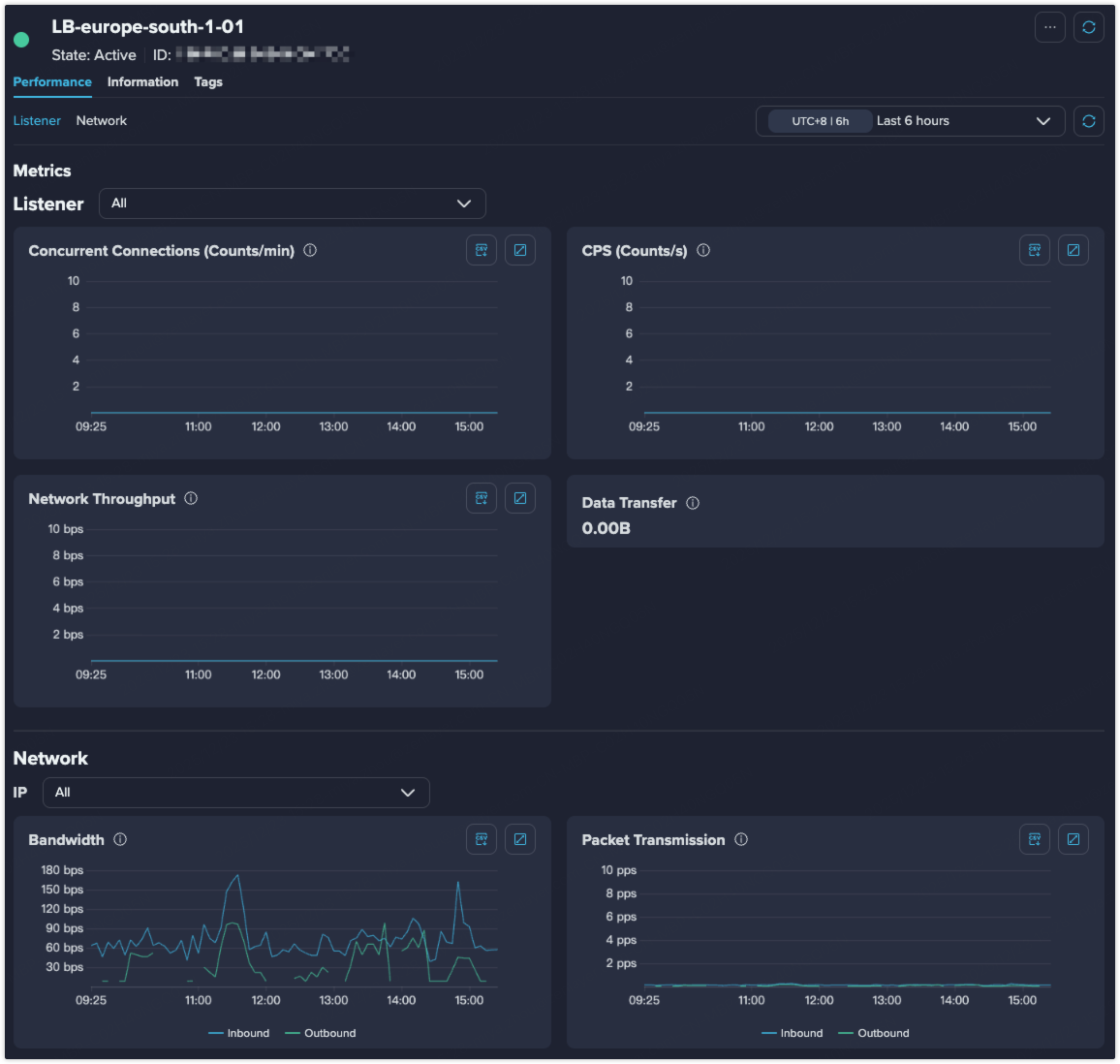
Click the load balancer name to go to the Details page.
### Listener Metrics
Select all Listeners or a specified listener during a custom time range to check the following performance metrics.
**Concurrent Connections (Counts/min)** Indicates the number of active connections at a given time. Used to identify connection saturation, long-lived connections, or the need for capacity scaling.
**CPS (Connections Per Second / Counts/s)** Measures the rate of new connections. Useful for detecting traffic bursts, sudden workload increases, or abnormal connection behavior.
**Network Throughput** Shows real-time combined inbound and outbound bandwidth rate processed by a load balancing instance within one hour, measured in bits per second (bps). Used to assess whether the load balancer is approaching throughput limits.
**Data Transfer** Represents the combined inbound and outbound data transfer processed by a load balancing instance within a selected time range, measured in GB. Primarily used for traffic analysis and billing evaluation.
### Network Metrics
Select all elastic IPs or a specified IP during a custom time range to check the following performance metrics.
**Bandwidth** Reflects inbound bytes transferred to and outbound bytes transferred from a public IP address per second. Used to determine whether bandwidth is sufficient or needs to be increased.
**Packet Transmission** Tracks inbound packets received by and outbound packets transmitted from a public IP address per second. Helpful for diagnosing network quality issues, such as packet bursts or inefficiencies caused by small-packet traffic.
***
## Delete a Load Balancer
If you don't need a load balancer any more, you can manually delete it.
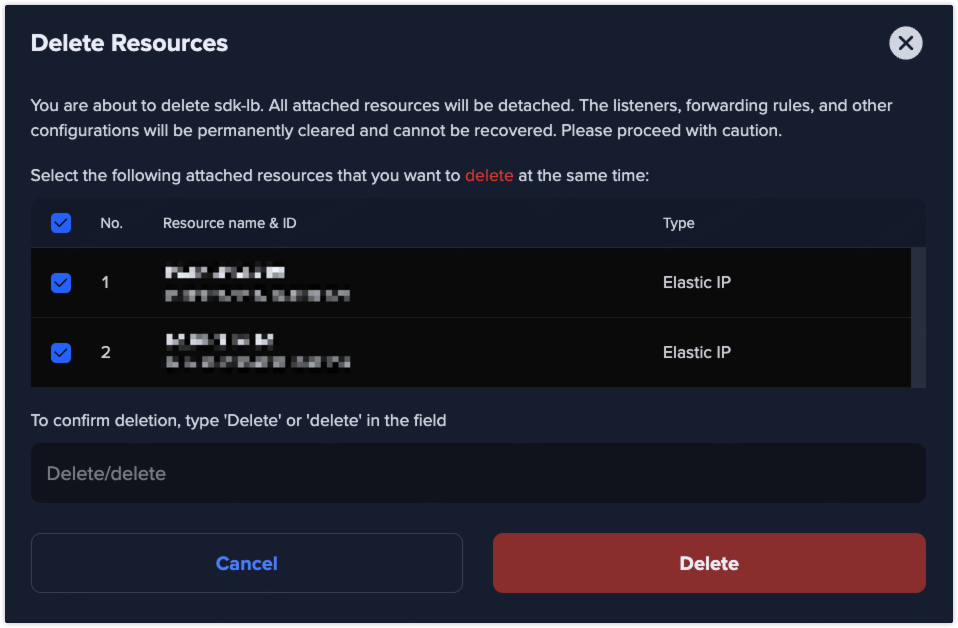
On the load balancer list page, go to **Actions** > **Delete**. Type 'Delete' or 'delete' to confirm deletion.
All attached resources will be detached. The listeners, forwarding rules, and other configurations will be permanently cleared and cannot be recovered. Please proceed with caution.
For elastic IPs, you can select one or more elastic IPs to delete them simultaneously.
{% hint style="info" %} **Note**
* After deletion, the load balancer will be automatically released after 24 hours and can be restored with one click within this period.
* You can also permanently delete it manually at any time.
{% endhint %}