> For the complete documentation index, see [llms.txt](https://docs.console.zenlayer.com/welcome/llms.txt). Markdown versions of documentation pages are available by appending `.md` to page URLs; this page is available as [Markdown](https://docs.console.zenlayer.com/welcome/elastic-compute/load-balancing/modify-health-check.md).
# Modify Health Check
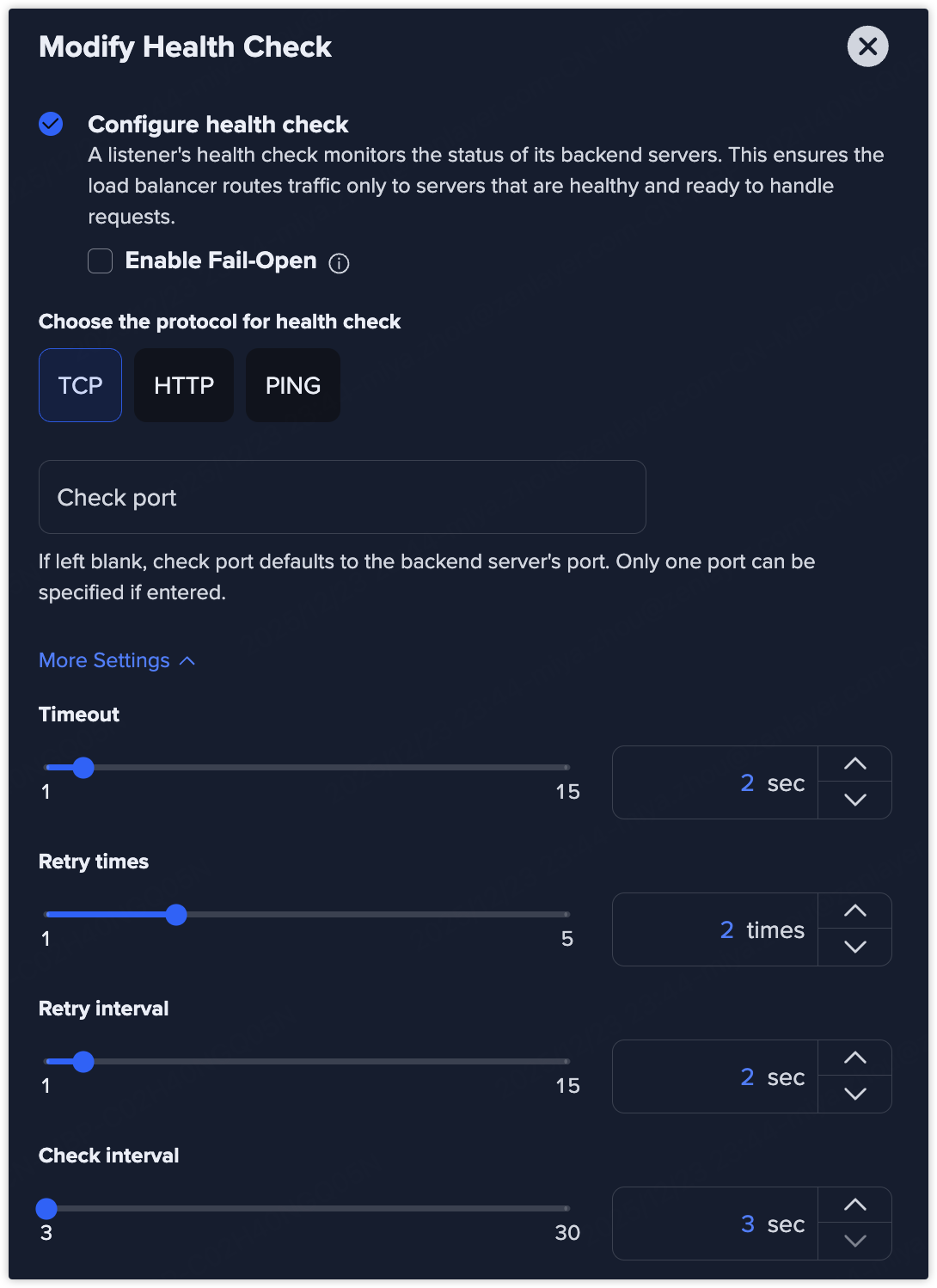
A listener's health check monitors the status of its backend servers. This ensures the load balancer routes traffic only to servers that are healthy and ready to handle requests.
You can enable or disable **Configure health check** to activate or deactivate health monitoring.
When health check is enabled, the load balancer automatically removes unhealthy servers from traffic distribution and re-adds them once they recover.
## Fail-Open (Optional)
Enable **Fail-Open** to allow traffic to continue being forwarded to all servers even if all backends fail health checks. This feature helps to maintain service continuity.
{% hint style="info" %} **Note**
Fail-Open is only available in certain regions; the actual availability shall prevail.
{% endhint %}
## Health Check Protocol
You can select one of the following protocols for health checks, depending on your application requirements.
### TCP
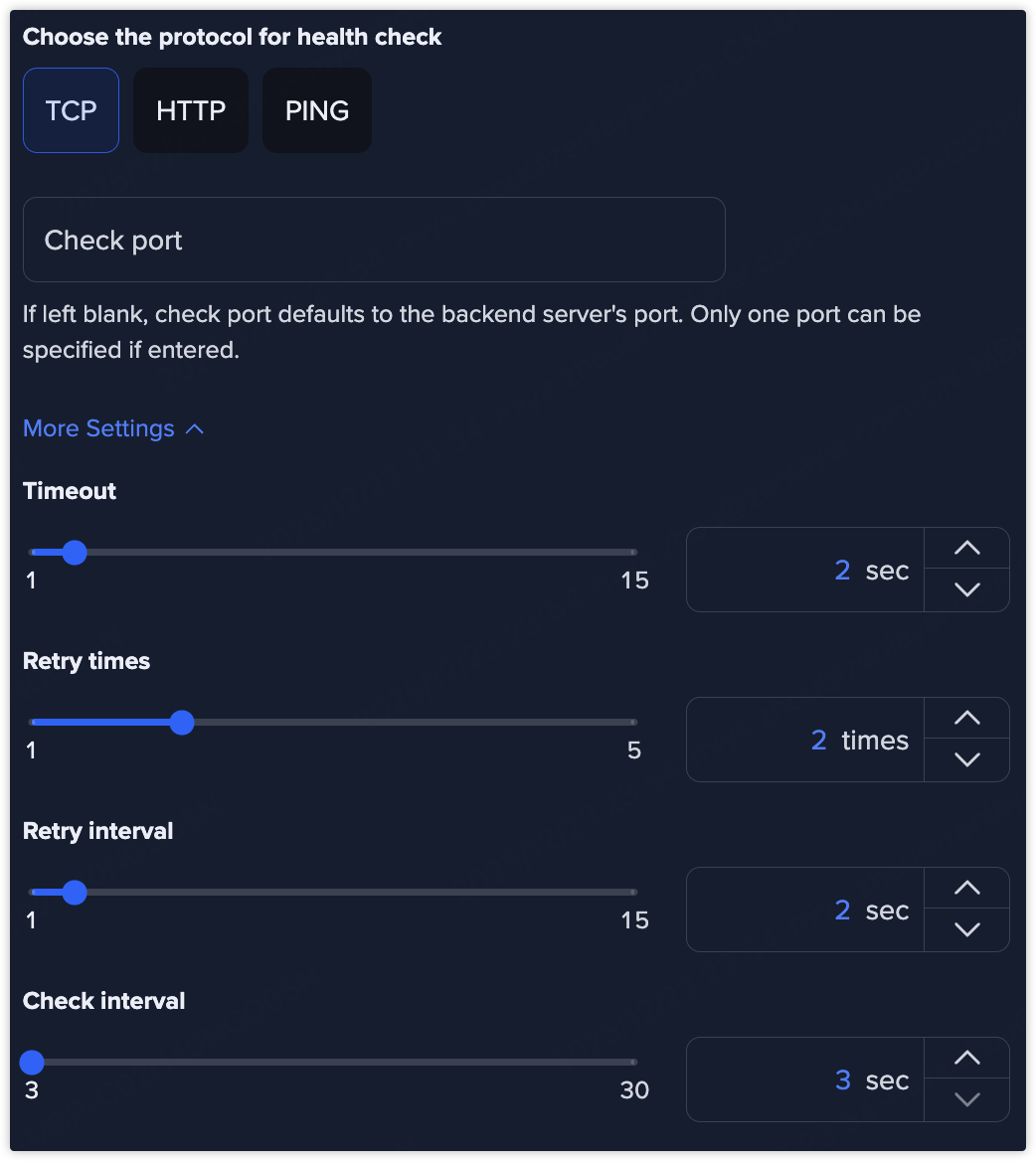
A **TCP health check** verifies whether the backend server can accept TCP connections on the specified port.
* Does not inspect application-layer responses
* Suitable for generic TCP services
* Commonly used for databases, file transfer services, and custom TCP applications
**Use when:**\
You only need to confirm that the service port is reachable.
#### Check port
Specify the port used for the TCP health check.
* If left blank, the check port defaults to the backend server’s service port.
* Only one port can be specified.
Use a custom port if:
* Health checks run on a different port from the service port.
* A dedicated health-check endpoint is exposed separately.
#### More Settings
* **Timeout**\
Defines the maximum time the load balancer waits for a health check response. If no response is received within this time, the check is considered failed.
* Range: **1–15 seconds**
* **Example:** `2 seconds`
* **Retry Times**
Number of consecutive retries before marking a backend server as unhealthy.
* Range: **1–5 times**
* **Example:** `2 times`
* **Retry Interval**\
Interval between retry attempts after a failed health check.
* Range: **1–15 seconds**
* **Example:** `2 seconds`
* **Check Interval**\
Interval between regular health check attempts. Shorter intervals allow faster detection of failures but increase probe traffic.
* Range: **3–30 seconds**
* **Example:** `3 seconds`
### HTTP
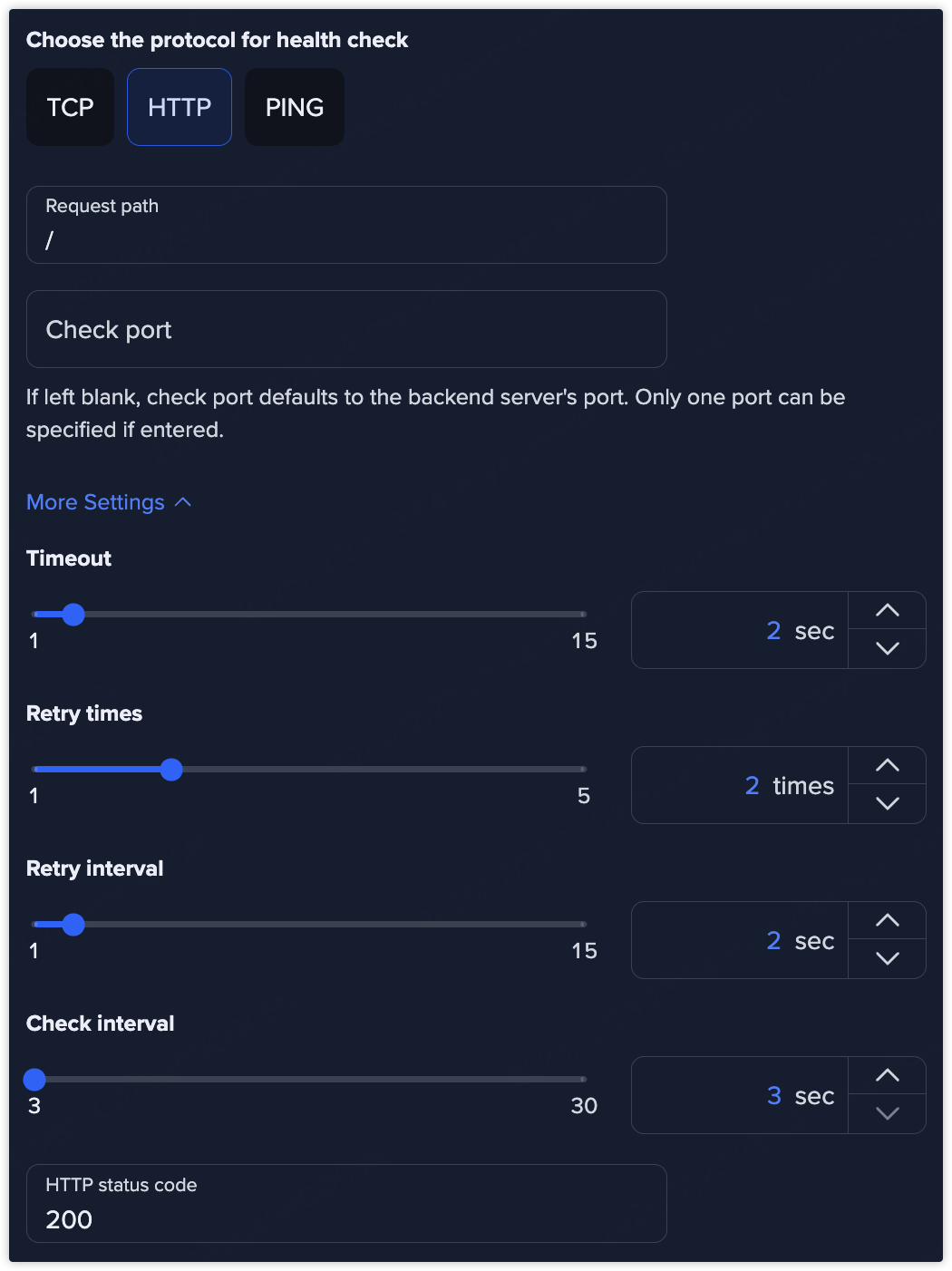
An **HTTP health check** sends an HTTP request to a specified path on the backend server and evaluates the response.
* Checks application-level availability
* Supports status code validation (e.g., 200 OK)
* More accurate for web services and APIs
**Use when:**\
You need to verify that the application itself is functioning correctly, not just the port.
#### Request path
Specify the HTTP path used for health checks, for example:
```bash
/
/health
/status
```
* The path must be accessible on the backend service.
* It is recommended to use a lightweight endpoint dedicated to health checks.
#### Check port
Specify the port used for the HTTP health check.
* If left blank, the check port defaults to the backend server’s service port.
* Only one port can be specified.
Use a custom port if:
* Health checks run on a different port from the service port.
* A dedicated health-check endpoint is exposed separately.
#### More Settings
* **Timeout**\
Defines the maximum time the load balancer waits for a health check response. If no response is received within this time, the check is considered failed.
* Range: **1–15 seconds**
* **Example:** `2 seconds`
* **Retry Times**
Number of consecutive retries before marking a backend server as unhealthy.
* Range: **1–5 times**
* **Example:** `2 times`
* **Retry Interval**\
Interval between retry attempts after a failed health check.
* Range: **1–15 seconds**
* **Example:** `2 seconds`
* **Check Interval**\
Interval between regular health check attempts. Shorter intervals allow faster detection of failures but increase probe traffic.
* Range: **3–30 seconds**
* **Example:** `3 seconds`
#### HTTP Status Code
Specify the expected HTTP response code that indicates a healthy backend.
Common values:
* `200` – Standard success response
* `2xx` – Any successful response (if supported)
If the backend returns a different status code, the health check fails.
### PING
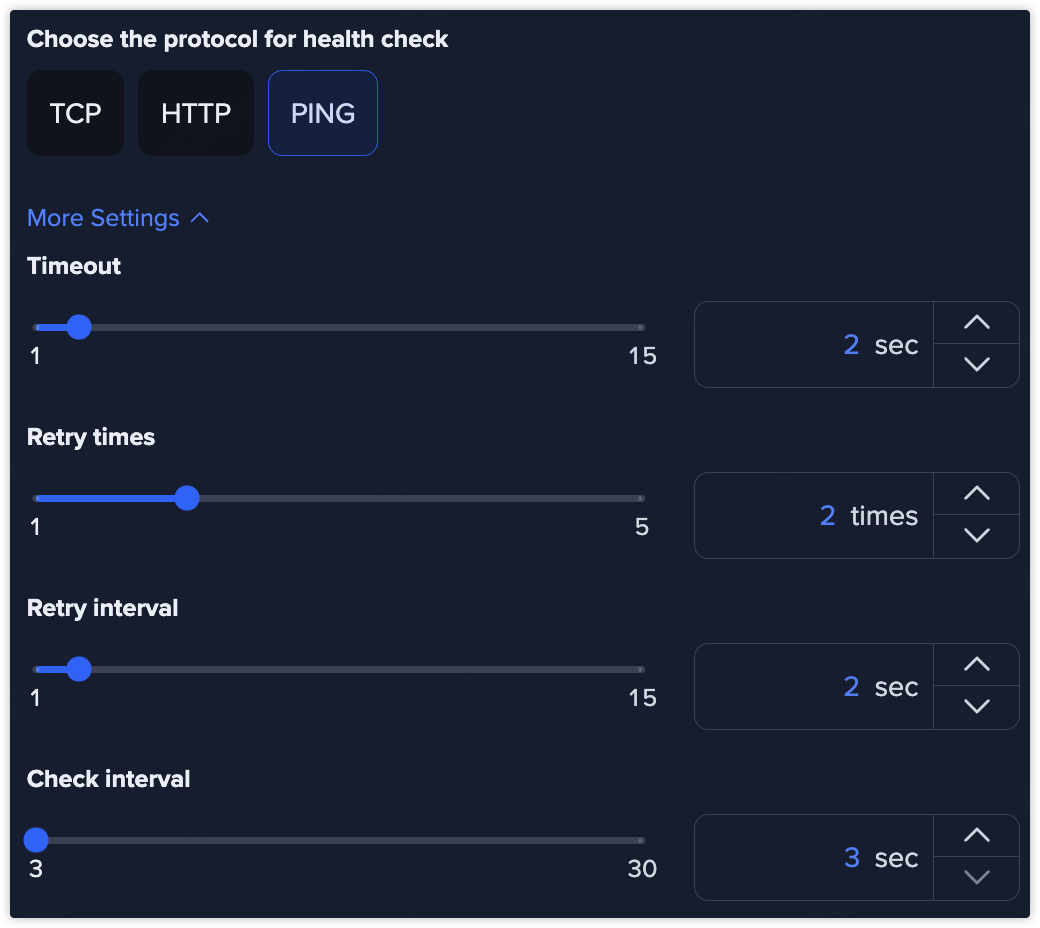
A **PING health check** verifies basic network reachability by sending ICMP echo requests.
* Tests network-level connectivity only
* Does not validate service or application status
**Use when:**\
You want to confirm that the backend server is reachable at the network layer.
#### More Settings
* **Timeout**\
Defines the maximum time the load balancer waits for a health check response. If no response is received within this time, the check is considered failed.
* Range: **1–15 seconds**
* **Example:** `2 seconds`
* **Retry Times**
Number of consecutive retries before marking a backend server as unhealthy.
* Range: **1–5 times**
* **Example:** `2 times`
* **Retry Interval**\
Interval between retry attempts after a failed health check.
* Range: **1–15 seconds**
* **Example:** `2 seconds`
* **Check Interval**\
Interval between regular health check attempts. Shorter intervals allow faster detection of failures but increase probe traffic.
* Range: **3–30 seconds**
* **Example:** `3 seconds`