> For the complete documentation index, see [llms.txt](https://docs.console.zenlayer.com/welcome/llms.txt). Markdown versions of documentation pages are available by appending `.md` to page URLs; this page is available as [Markdown](https://docs.console.zenlayer.com/welcome/ai-gateway/create-an-ai-gateway.md).
# Create an AI Gateway
## Procedures
{% stepper %}
{% step %}
#### Sign In
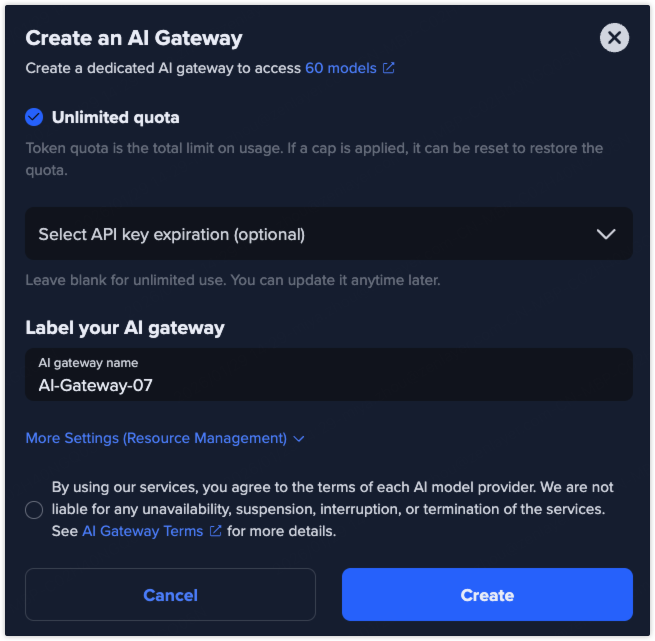
Go to [**zenConsole**](https://console.zenlayer.com/) and log in with your account. On the left menu bar, go to **Products** > **GPU & AI** > **AI Gateway**, and click **Create AI Gateway**.
{% endstep %}
{% step %}
#### Configure Token Quota
A token represents a unit of text processed by the model. Token quota defines the maximum number of tokens, including **all token types**, such as input tokens, output tokens, cached tokens, and any other tokens consumed during request processing.
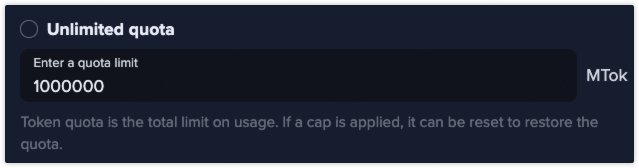
The token quota is unlimited by default. Uncheck **Unlimited quota** if you want to restrict the maximum number of tokens this API key can consume.
**Usage Cap Example**
For example, if you set the token quota to **1,000,000 tokens**:
* The API key can consume up to 1,000,000 tokens in total
* Once the quota is reached, the API key will be automatically suspended
* No further token consumption or API requests will be allowed unless the quota is updated
{% endstep %}
{% step %}
#### *(Optional)* Configure API Key Expiration
You can set an expiration time for temporary or project-based access.
Available values: `7 days`, `30 days`, `60 days`, `90 days`, `Long-lived`, and `Custom`.
Leave blank for unlimited validity.
{% endstep %}
{% step %}
#### Set AI Gateway Name
Give an identifier to your AI gateway instance.
{% endstep %}
{% step %}
#### More Settings
You can add your AI gateway instance into a specified resource group. In a resource group, specific members can be granted defined permissions for resources.
See [Create a Resource Group](/welcome/platform/team-management/create-a-resource-group.md) for more details.
{% endstep %}
{% step %}
#### Complete Creation
Review and confirm the AI Gateway terms, then click ***Create*** to create an AI Gateway.
{% endstep %}
{% endstepper %}
## Result
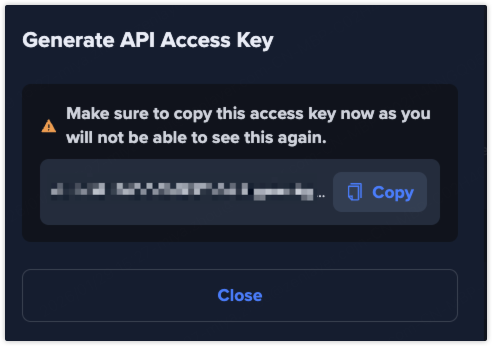
Once created, you will receive an **API Access Key**, which is used for all subsequent API calls. See [**API docs**](https://docs.console.zenlayer.com/api-reference/compute/aig) to view all related API interfaces.
Copy this access key and store it securely.
## What to Do Next
Click the AI Gateway name to view the details page of logs, data analysis and basic information.
You can also perform the follow operations in **Actions** if you need:
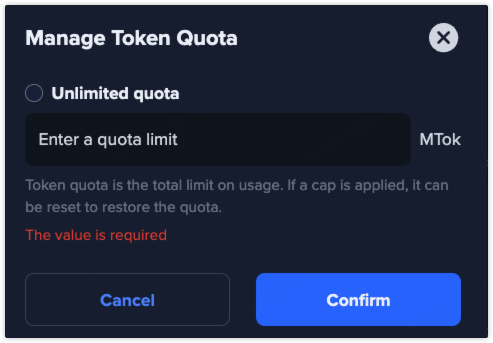
### Manage Token Quota
Uncheck **Unlimited quota** to enter a quota limit.
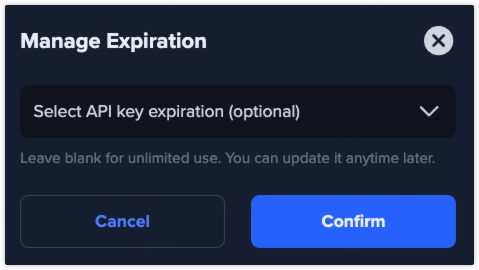
### Manage Expiration
Select desired API key expiration duration.
### Duplicate AI Gateway
Click ***Duplicate AI Gateway*** to create an AI Gateway with the same configuration.
### Delete
Click ***Delete*** if you don't need the AI gateway any more.